Merge JPG to PDF Free
Nine separate JPG files in a WhatsApp message is not a document. It's archaeology. Add your photos here, set the order, press Convert — and send one file instead.
Merge JPGs now →Quick answer: Go to jpgtopdfmobile.com, add all your JPG photos, drag them into the order you want, and press Convert. Every photo becomes one page. The merged PDF downloads in a few seconds. No sign-in, no upload, no watermark.
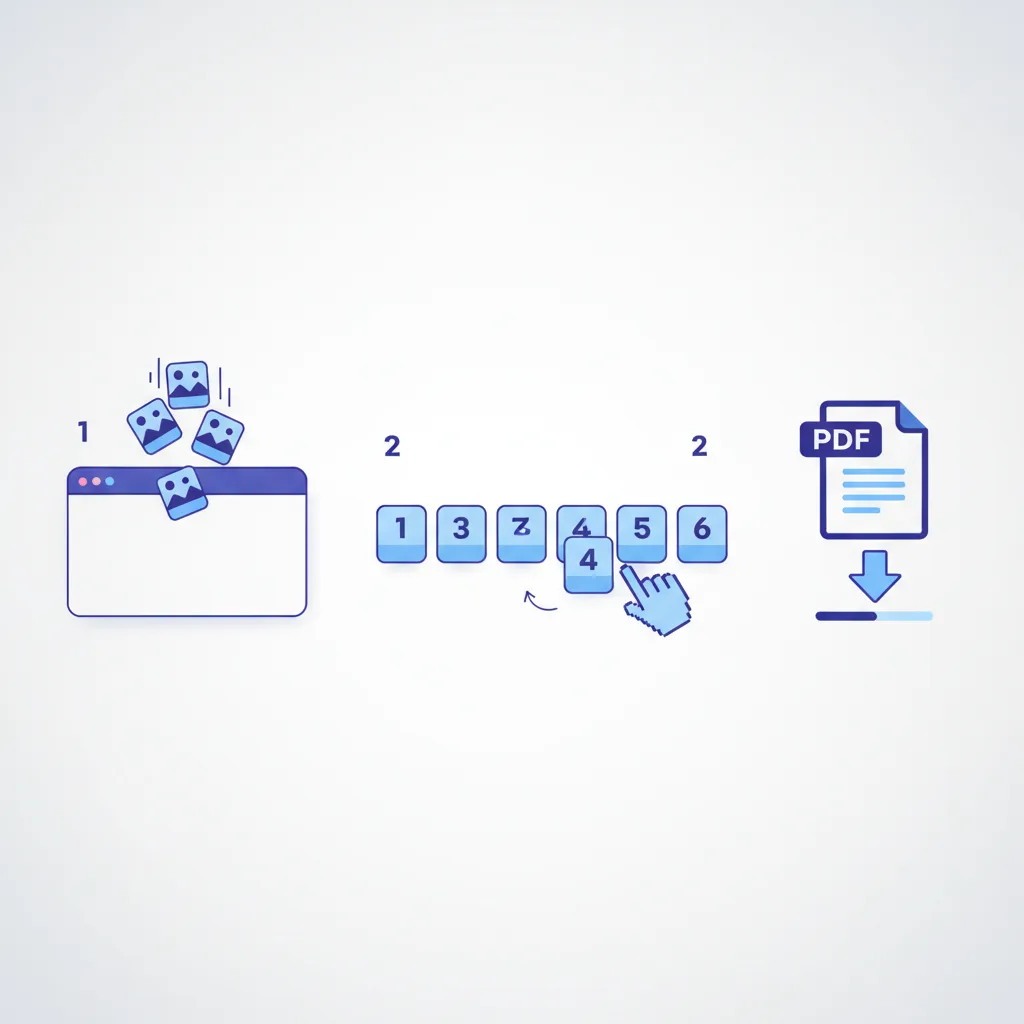
How to merge JPG to PDF — three steps
You have eight photos of an eight-page form. They are in your camera roll in exactly the right order. Here is how they become one PDF.
Open jpgtopdfmobile.com. Tap "Open files" and select multiple photos at once, or drag them all into the drop zone together. JPG, JPEG, and PNG all work. You can mix formats in one batch.
Each photo appears as a numbered thumbnail. Drag them into the sequence you want. This is the step that matters. The PDF pages follow the thumbnail order exactly — top is page 1.
Pick a page size — A4 for almost everything — choose your quality setting, and press Convert. A few seconds later, one merged PDF is ready to download or share directly to WhatsApp.
Combine your photos into one PDF now
Free, private, no watermark. Your photos never leave your device.
Merge JPG to PDF →
Why one PDF beats nine separate photos
Sending separate JPG files is technically correct. Practically, the recipient opens IMG_4821.jpg through IMG_4829.jpg, guesses the order, opens each one individually, and then tells you the file is out of sequence. Nine times out of ten, that's how a "quick document submission" turns into a back-and-forth.
A merged PDF is one file. Pages in the right order. One print job. One attachment. One upload to the portal that only accepts a single file anyway. The recipient opens it the same way on a phone, a laptop, or a printer — because PDF is an open ISO standard (ISO 32000-2). No specific app required. No guessing the order.
When you actually need this
KYC and ID documents
Aadhaar front and back, PAN card, and address proof — merged into one PDF for a portal that only accepts a single file.
Expense receipts
Six receipts from a business trip. One merged PDF is infinitely easier for the accounts team than six separate attachments with auto-generated names.
Multi-page forms
A four-page application photographed page by page. Merge into one PDF in the right order before submitting. Obvious in retrospect. Somehow not obvious in the moment.
Contracts and agreements
A ten-page lease photographed on a phone. Merge into one PDF to send to a lawyer or the other party.
Assignments and notes
Handwritten answers across multiple sheets. One merged PDF for the LMS, instead of a ZIP that half the platforms cannot open.
Medical records
Test reports and prescriptions from different visits. One PDF for the insurance claim or the specialist referral.

Getting the page order right — the step that goes wrong
Getting the order wrong is like shelving books alphabetically but starting from the middle. The information is all there. Nobody can find anything.
Phones do not always sort photos in shooting order. Gallery apps sort by name, by date modified, by whatever logic they feel like that day. Upload ten photos and they may arrive at the converter in a completely different sequence to the one you photographed them in. Never assume the upload order matches the shooting order.
After adding your photos, look at the numbered thumbnails and drag them into the correct sequence before pressing Convert. It takes fifteen seconds. It saves fifteen minutes of re-doing it.
Rule of thumb: Before photographing a multi-page document, rename or number each shot as you go — or photograph a blank page between every five pages as a visual divider. When reordering thumbnails, you can immediately see where each chunk starts and ends.
What order does the output PDF use?
The page order in the PDF matches the thumbnail order at the moment you press Convert. Top of the list is page 1. That is all. You have complete control. Use it.
Before you merge — a quick pre-flight
Merging does not fix problems in the source photos. A blurry shot is a blurry page. A cropped edge stays cropped. Check these before you press Convert, not after you get a rejected submission back.
- All pages are present. You photographed eight. Count the thumbnails. If there are seven, you know what to do. (Photograph the missing one. I did not think I needed to say that. Experience suggests otherwise.)
- Text is readable. Zoom into each thumbnail. If the text is blurry or overexposed in the photo, it will be blurry or overexposed in the PDF. The converter cannot fix bad photography — and I say that as someone who has tried, lovingly and repeatedly, to no avail.
- Rotate misaligned shots first. Phones auto-rotate photos for display, but a PDF renders the actual pixel orientation. A sideways photo in the gallery may come out sideways in the PDF. Rotate before uploading.
- No accidental photos. The photo of the ceiling from when you dropped the phone. The one of your thumb. The one of the floor where you set it down for a second. Remove these before uploading.
- Consistent orientation. Mixing portrait and landscape pages in one PDF looks messy. Rotate everything to one orientation where possible — especially for anything going to a bank or government portal.
Thirty seconds checking this before the merge saves the resubmission conversation later.
How large will the merged PDF be?
Ten high-resolution phone photos at full quality can produce a 30–40 MB PDF. Some portals cap uploads at 2 MB, 5 MB, or 10 MB. Here is a rough guide by photo count and quality setting:
| Photos | High Quality | Medium Compression | High Compression |
|---|---|---|---|
| 2 photos | ~3–5 MB | ~1–2 MB | ~0.5 MB |
| 5 photos | ~8–12 MB | ~3–5 MB | ~1–2 MB |
| 10 photos | ~15–25 MB | ~6–10 MB | ~2–4 MB |
| 20 photos | ~30–50 MB | ~12–20 MB | ~4–8 MB |
Estimates for typical 12 MP phone camera shots. Size depends on image content and original resolution.
If the portal rejects the file for size, convert again on High Compression. Fine print becomes slightly harder to read at maximum zoom, but legible at normal reading size. For ID documents, use High Quality. For a stack of receipts, High Compression is fine.
The fastest route to a smaller PDF is to share each photo at a lower resolution from your gallery app before adding it to the converter. Most phones offer this option in the share sheet. It costs nothing and cuts final file size by half or more.
Three things the merged PDF cannot do
These come up. Better to know now than at 11pm the night before a deadline.
- The text is not searchable or selectable. Each page is a photograph embedded in the PDF. The text inside the photo cannot be searched, copied, or highlighted — not without running the file through an OCR (optical character recognition) tool first. If you need a searchable PDF, services like Adobe Acrobat's text recognition can do that after merging.
- The content is not editable. A merged image-based PDF is a collection of photos, not a document with editable fields. If the recipient needs to fill in text, sign digitally, or amend anything, they need the original source documents — not a PDF of photos.
- It does not fix bad source photos. A cropped edge stays cropped. A blurry shot stays blurry. Glare stays glare. The merge is just assembly — the quality of the output is exactly the quality of the input. There is no magic happening in between. (Believe me, I checked.)
For government forms, bank documents, and anything going to a professional — get the source photos right first, merge second.

Merging on your phone
Most people doing this are on a phone, with the photos already in the camera roll and the deadline already closer than is comfortable. The converter is built for that exact situation.
- Select multiple photos at once — tap "Open files" and long-press to select several from the gallery in one go. Faster than adding them one at a time.
- Reorder on a touchscreen — tap and hold a thumbnail, drag it to the right position. Same gesture as rearranging apps on a home screen.
- Share directly to WhatsApp — when the PDF is ready, tap Share and send it to a chat without downloading it to Files first.
- Install as an offline app — tap "Add to home screen" once. After that it works like a native app, including fully offline. The conversion runs locally as a Progressive Web App — which means it works on a train, in a basement, or anywhere else signal decides not to show up.
For an interface built specifically for one-handed phone use — larger controls, simplified layout — try the mobile converter.
jpgtopdf vs other ways to merge JPG to PDF
The honest version of how the main options compare.
| Method | Photos uploaded to server? | Free, no watermark? | Reorder pages? | Works on mobile? |
|---|---|---|---|---|
| jpgtopdf | Never | Yes | Yes | Yes |
| Adobe Acrobat online | Yes | Free tier limited | Yes | Requires account |
| ILovePDF / SmallPDF | Yes | Daily limits, watermarks | Yes | Varies |
| Google Drive | Yes (to Google) | Free | Not natively | Requires account |
| iPhone Files app | No upload | Free | Yes | iOS only |
For personal photos or whiteboard notes, upload-based tools are fine. For ID documents, medical records, and contracts, "never uploaded" is the only sensible answer.
Straight answers — questions people actually search
How do I merge multiple JPGs into one PDF for free?
Open jpgtopdfmobile.com, add all your photos, drag the thumbnails into the order you want, and press Convert. Every photo becomes one page in a single merged PDF. No account, no upload, no watermark.
Can I change the page order before merging?
Yes — and you should do it before pressing Convert, not after. Drag the thumbnails into the correct sequence. The PDF page order matches the thumbnail order at the moment you convert.
Does merging JPGs into a PDF reduce the quality?
Only if you choose a compression setting. High Quality puts each photo into the PDF at full resolution. Use Medium or High Compression when the merged file needs to come in under a portal's size limit.
How large will the PDF be after merging?
At High Quality, roughly 1.5–3 MB per photo for a typical 12 MP phone shot. Ten photos can produce a 15–25 MB merged PDF. If a portal rejects it, re-convert on High Compression — that typically cuts file size by 60–80% with a small quality trade-off.
Can I merge JPGs into PDF on my phone without installing an app?
Yes. Open jpgtopdfmobile.com in any mobile browser, select photos from your camera roll, reorder the thumbnails, and press Convert. The merged PDF downloads directly to your phone. No app install required — though you can add the site to your home screen if you use it regularly.
Can I mix JPG and PNG files in one merged PDF?
Yes. Add JPG and PNG in any combination. Each image becomes one page regardless of format. The output is a single merged PDF.
Is merging photos that include ID documents safe?
With this tool, yes. The merge runs entirely inside your browser. Your photos never reach a server — no thumbnail, no preview, no EXIF data. Nothing transits the network. There is nothing to intercept because there is no upload.
Can I search for text inside the merged PDF?
No. Each page is a photograph — the text inside it is part of the image, not selectable or searchable document text. If you need a searchable PDF, run the file through an OCR tool after merging.
What is the difference between merging JPGs and converting a single JPG?
Single conversion gives you one PDF page from one photo. Merging combines multiple photos into one multi-page document — each photo is one page, in the sequence you set. Same tool, different number of inputs.
Other tools on this site
If you've tried everything and the portal still won't accept it — checked the order, checked the size, checked the format — it is not you. Some portals are just like that. The file was fine.
↑ Back to top