JPG to PDF Maker
A JPG to PDF maker is not complicated. You drop photos in. You pick an order. You press convert. If it requires an account, a credit card, or a newsletter signup, you're using the wrong one. Here is how the right one works.
Make a PDF from photos →Quick answer: Open jpgtopdfmobile.com, add your JPG photos, drag to set the page order, pick A4 or Letter page size, and tap Convert. Your PDF downloads instantly. No upload, no account, works on any device including mobile.
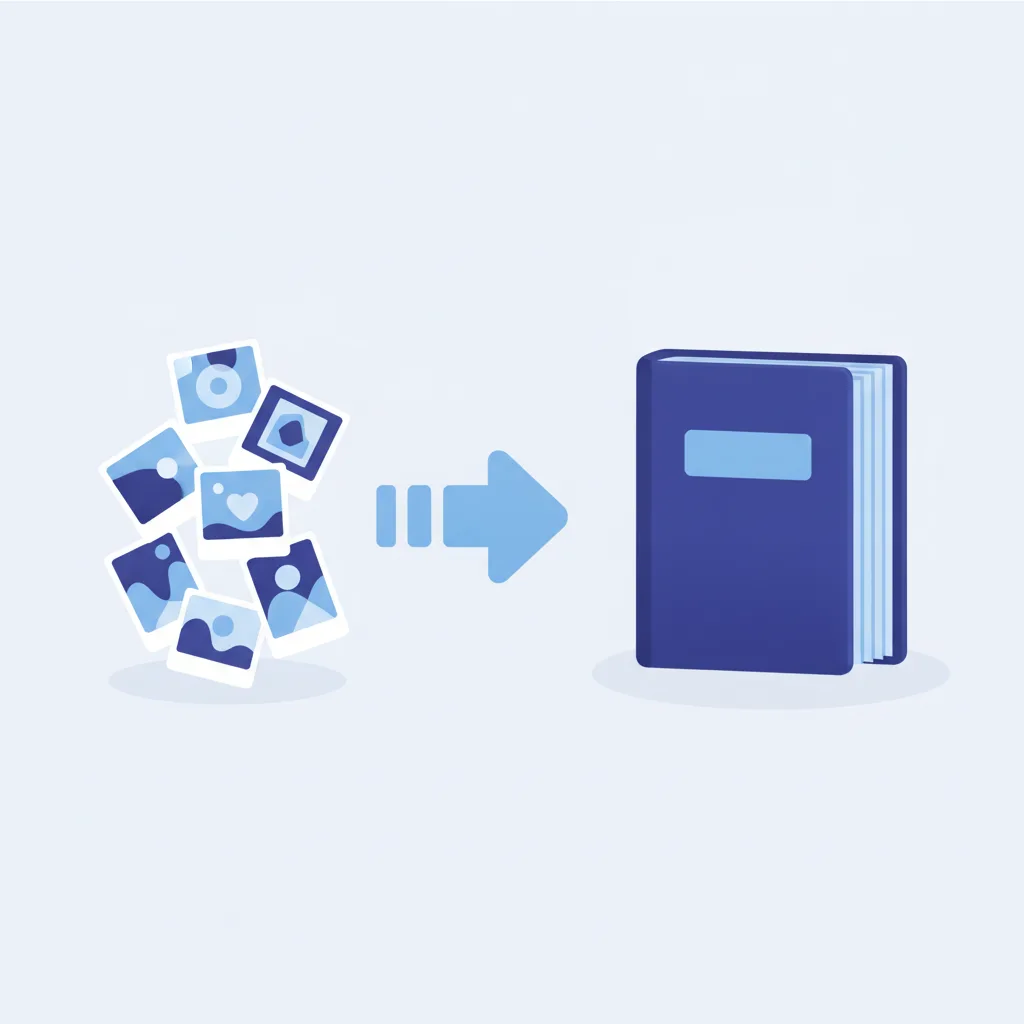
How to make a PDF from JPG — 3 steps
The process is the same on desktop, phone, and tablet. Everything runs in your browser.
Open jpgtopdfmobile.com and tap the upload area. Select one or multiple JPG files from your device. On a phone, this opens your photo gallery. You can select multiple photos in one go — no need to add them one by one.
Thumbnails appear in the order you selected them. Drag any thumbnail to move it — the order here becomes the page order in the PDF. Choose A4, Letter, or Fit to Image from the page size setting. Pick a quality level if you need to control file size.
Tap Convert. The PDF is built in your browser — no upload, no wait for a server response. The download starts immediately. On mobile, the PDF saves to your Files app (iOS) or Downloads folder (Android).
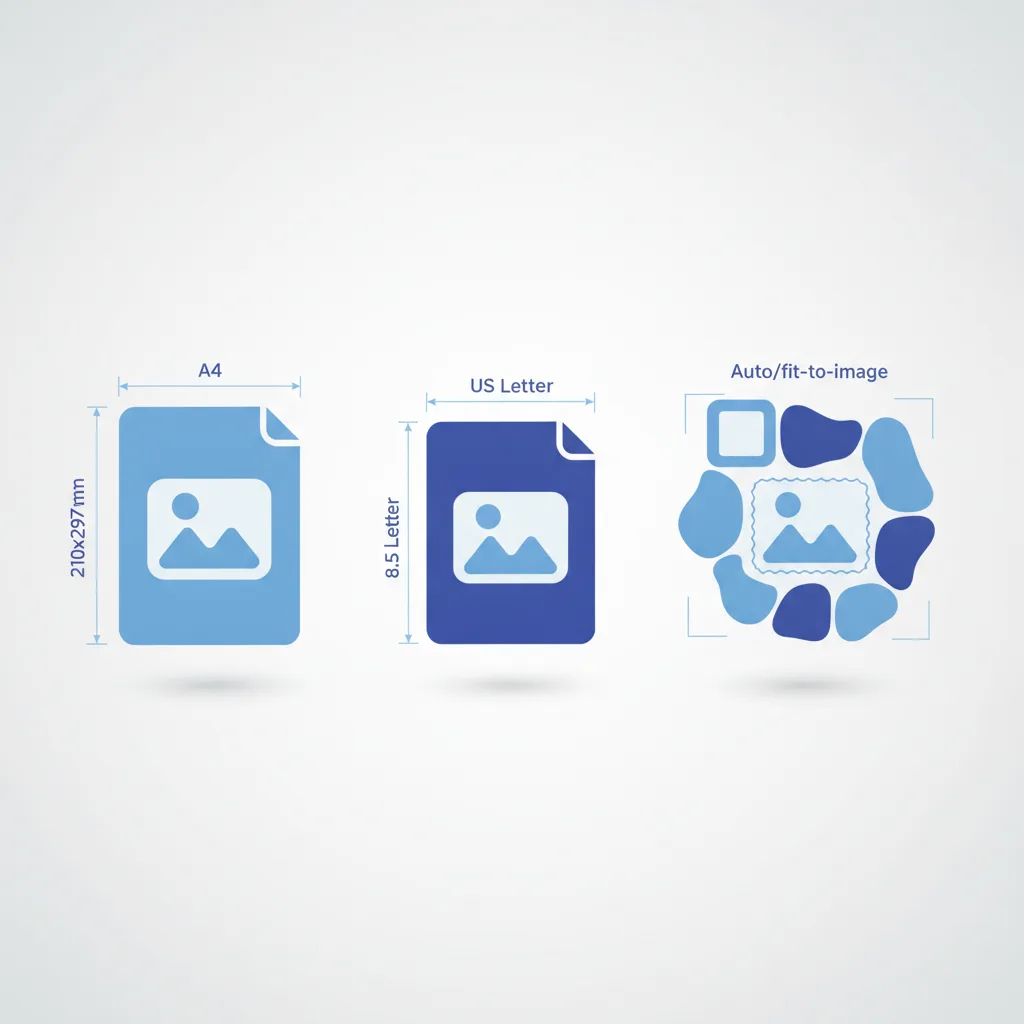
Page size options — which one to use
The page size controls what the PDF page looks like, not the image itself. Choose based on where the PDF will be used:
| Page size | Dimensions | Use when |
|---|---|---|
| A4 | 210 × 297 mm | Document submissions in India, Europe, Australia, UK — most of the world |
| Letter | 215.9 × 279.4 mm | Document submissions in the United States and Canada |
| Fit to image | Matches photo dimensions | Portfolios, photo books, creative work where you want no white border |
When in doubt, use A4. It is the global default for document submissions. If a portal rejects it and specifies Letter, you will know to change it on the second attempt.
Portrait vs landscape: A portrait photo on an A4 page gets scaled to fill the page height. A landscape photo gets scaled to fill the page width. The PDF page orientation follows the photo orientation automatically — no manual setting needed.
Make a PDF from your photos now
Free, no account, no upload. Works on any phone or computer.
Open the JPG to PDF maker →Setting the page order — it matters more than you think
The first thumbnail becomes page one. The last becomes the final page. Photos are added in the order you select them from your device — on most phones, that is the order they appear in your gallery at selection time.
If the order is wrong after uploading, drag the thumbnails to rearrange. It takes seconds and saves you from the classic mistake of submitting a document where pages 3 and 4 are swapped.
For contracts, multi-page forms, and sequential ID documents, double-check page order before converting. A resubmission because the pages were out of sequence is the most preventable kind of delay.
Quality settings — a quick guide
Three settings control the trade-off between image quality and file size:
- High (HD): Full resolution, no compression. Use for documents that will be printed or need to be verified at high zoom. Largest file size.
- Medium: Slight reduction. Indistinguishable from HD on screen. Good default for most submissions.
- Compressed: Significantly smaller file. Use only when a portal has a hard size limit you cannot work around. Check the output before submitting.
If you are not sure which to use, start with Medium. It handles 90% of use cases without any visible quality trade-off.
Making a PDF from photos on your phone
The converter is designed for mobile first. On iPhone, open Safari and go to jpgtopdfmobile.com. Tap the upload area — your photo library opens. Select photos. Set order. Tap Convert. The PDF saves to your Files app.
On Android, use Chrome. The process is identical. The PDF saves to your Downloads folder and shows in your notification bar when ready.
The entire conversion runs in the browser — no app to install. If you want one-tap access, add the site to your home screen: on iPhone, tap Share → Add to Home Screen. On Android, Chrome prompts you or use the three-dot menu → Add to Home Screen.
Common use cases — who uses a JPG to PDF maker and why
Students
Submitting handwritten notes, lab work, or signed consent forms to university portals that require PDF.
Bank and KYC
Converting ID photos and address proof images to PDF for bank account opening, loan applications, and UIDAI processes.
Photographers
Assembling a selection of photos into a portfolio PDF to share with clients or submit to a brief.
Freelancers
Combining receipt photos into one expense PDF for an invoice or reimbursement claim.
Visa applicants
Combining multiple supporting document photos (bank statements, property docs, sponsor letters) into one submission PDF.
Professionals
Turning site survey photos, delivery confirmation photos, or before-and-after job photos into a PDF report.
Straight answers
How do I make a PDF from JPG photos?
Open jpgtopdfmobile.com, add photos, set the order, choose A4 or Letter page size, and tap Convert. Downloads immediately. No account, no upload.
Can I make a PDF from multiple JPG photos?
Yes. Add as many photos as needed, drag to set order, convert. Each photo becomes one page in a single combined PDF.
What page size should I use — A4, Letter, or fit to image?
A4 for most countries. Letter for the US and Canada. Fit to image for portfolios and photo books where you want no white border around the photo.
How do I make a PDF from photos on my phone?
Open the converter in your phone browser. Tap upload, select photos from gallery, set order, tap Convert. Downloads to your Files app (iPhone) or Downloads folder (Android).
Can I make a photo book as a PDF?
Yes. Select photos in order, use Fit to Image page size, convert. Each photo becomes a full-page spread — ready to share or print.
What is the difference between a JPG to PDF maker and a scanner app?
A JPG to PDF maker converts existing photo files. A scanner app captures new photos of physical documents using the camera. Use the maker for existing photos; photograph first with the camera, then convert for paper documents.
Related tools and guides
A PDF from photos takes about 30 seconds. If it takes longer, you are probably using a server-based tool with an upload queue. There is a faster way.
↑ Back to top